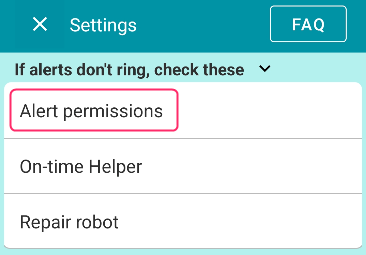

This guide explains the causes and solutions for when a yellow or red bell icon appears on the Settings icon.
If these icons are displayed, it means there is a possibility that notifications or alarms may not trigger correctly.
The cause is that the app has not been granted the necessary permissions to sound alarms or notifications on your device.
The icon will disappear once the correct permissions are granted.
Causes and Solutions for the Red Bell Icon
The red icon appears due to one or both of the following reasons:
- Notification permission is not granted.
- “Alarms & reminders” permission is not granted.
How to Grant Notification Permission
Long-press the app icon and tap the “i” (App Info) icon that appears.

Select “Notifications” from the list and toggle the All notifications switch to ON.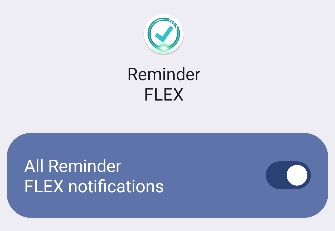
Notification permission is now successfully granted.
Granting “Alarms & Reminders” Permission
Similarly, tap the “i” icon to go to the “App info” for Reminder FLEX.
Scroll down to the bottom.
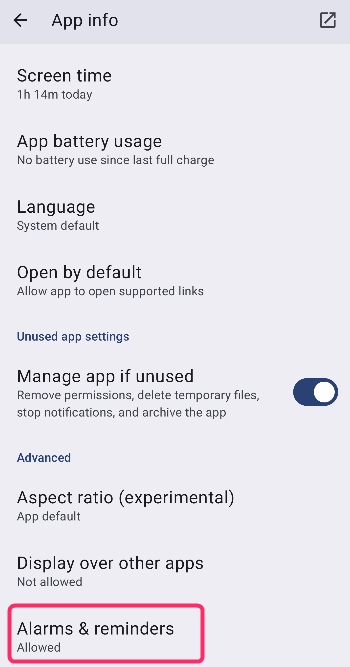
Locate Alarms & reminders and toggle the switch to ON.
If you cannot find the “Alarms & reminders” item:
- This item does not exist on Android 11 or earlier versions.
- On devices with Android 14 or later, this item may not be displayed if you have already set the app’s battery usage to “Unrestricted.”
If you have already set the app to “Unrestricted” in battery optimization, the “Alarms & reminders” permission is generally enabled automatically. If you wish to manually toggle the “Alarms & reminders” switch, set the app back to “Optimized” once, and the item will reappear.
Causes and Solutions for the Yellow Bell Icon
The yellow bell icon appears because the app is being “Optimized” for battery usage.
To remove the bell icon, please exclude Reminder FLEX from battery optimization.
In the app, go to Settings → “Alert Permissions” and follow the steps to exclude it from battery optimization.