“Notifications didn’t appear on the lock screen even though the time had come”
“The alarm didn’t go off even though it was set”
“The reminder notification arrived tens of minutes late”
“Notifications appeared only after unlocking the phone”
Have you ever experienced something like this while using an Android phone?
In many cases, people assume this problem is caused by
“a bug in the app”
but in reality, it is usually a settings issue.
Once you understand the real cause and apply the correct settings,
Android notifications and alarms can go off exactly on time.
In this article, we will explain:
why Android notifications do not go off,
how to prevent notification delays,
and a reminder app that goes off exactly on time with no delay at all.
No technical knowledge required.
Why Android notifications and alarms do not go off on time
The real cause is “DOZE mode”
Android has a power saving feature called DOZE mode.
When you do not touch your phone for a while, Android automatically restricts:
・app activity
・network access
・background processing
This helps extend battery life, but there is a downside.
If an app does not have the required permissions or settings, even reminder and alarm apps can be stopped.
As a result, the following problems occur:
- Notifications do not appear
- Alarms do not go off
- Notifications are significantly delayed
3 required settings to make notifications go off on time
To ensure notifications and alarms go off without delay on Android,
the following 3 settings (4 for Chinese devices) must be configured correctly.
- Enable notification permission
- Allow the alarms and reminders permission
- Exclude from battery optimization
- Turn on AutoStart on Chinese-brand devices
1. Allow notification permission
Starting from Android 13, users must explicitly allow apps to send notifications.
If notification permission is turned off,
notifications will not appear even if the app is working correctly.
If “the app works but nothing happens,”
this is often the first thing to check.
Go to Settings > Apps and confirm that notifications are allowed for the app.
2. Allow “Alarms & reminders” permission
Since Android 12, there is a special permission for
“alarms and exact time notifications” called “Alarms & reminders.”
If this permission is not enabled for your alarm or reminder app,
Android treats it as:
“a notification that can be delayed without issues.”
This causes:
- Delayed notifications
- Alarms not going off
- Notifications appearing only after unlocking the device
Many users searching for
“alarm not going off” or “reminder not working on Android”
are missing this permission.
You can fix this by going to Settings > Apps,
selecting the app, and enabling “Alarms & reminders.”
When the “Alarms & reminders” permission does not appear
On Android 12 or later, if this permission does not show up in settings,
it is usually due to one of the following reasons:
- The app is already excluded from battery optimization
- The app does not support this permission
The app is already excluded from battery optimization
On Android 14 or later, if an app is excluded from battery optimization,
the “Alarms & reminders” setting may not appear at all.
To double check, temporarily turn battery optimization back on,
then reopen the app settings to see if the permission appears.
The app does not support the permission
Older alarm or reminder apps that have not been updated
may not support the “Alarms & reminders” permission at all.
In such cases, excluding the app from battery optimization may help,
but if problems persist,
we recommend switching to a considered compatible app.
3. Exclude the app from battery optimization
This is the most important step.
“Notifications are allowed. Alarms & reminders are enabled. But it still does not go off.”
In most cases, battery optimization is the cause.
Android heavily restricts apps that are subject to battery optimization
when DOZE mode is active.
Even alarm and reminder apps are not exempt.
👉 Tip: The built in system alarm app is excluded from battery optimization by default.
If you only need a wake up alarm, using the system alarm app alongside a reminder app is recommended.
In other words,
apps not excluded from battery optimization can be stopped during DOZE mode.
Even if “Alarms & reminders” permission is enabled,
specific features such as playing sound or voice reading
may be restricted, causing no sound or immediate stoppage.
This leads to issues like:
“An alarm scheduled for 10:00 goes off at 10:05 or 10:10”
or
“The alarm never goes off.”
How to exclude battery optimization
Go to Settings > Apps.
For Android 14 or later:
Select the app > Battery > Choose “Unrestricted”
For Android versions before 14:
Tap the 3 dots > Special app access > Battery optimization > Exclude the app
Turn ON AutoStart (Chinese-brand devices only)
OPPO, Realme, OnePlus, Xiaomi (Redmi, POCO), VIVO, iQOO, Infinix, TECNO, Huawei and other Chinese-brand devices often fail to deliver notifications unless Auto Start / Auto Launch is enabled. So turn it on.
→[By Manufacturer] How to Enable Auto Start (AutoStart)
The Android reminder app that goes off exactly on time

Reminder FLEX goes off exactly on time with no delay at all,
even while your Android device is in DOZE mode.
Easy to set up even if you are not tech savvy
Reminder FLEX provides clear in app guidance for:
- Notification permission
- Alarms & reminders permission
- Battery optimization exclusion
Even if you think:
“There are too many settings”
“I do not know what to tap”
you can simply follow the on screen instructions
and ensure notifications go off on time without delay.
Main features of Reminder FLEX
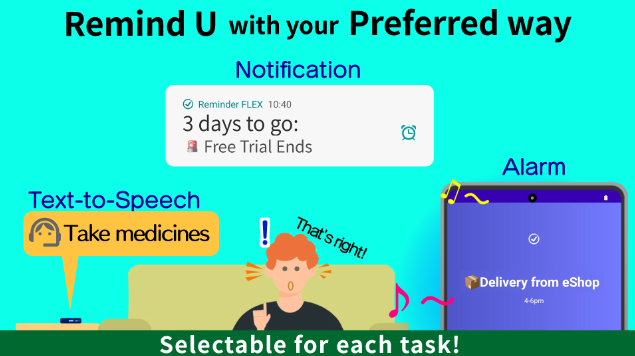
- Choose alert type for each reminder: alarm, notification, or voice reading
- Works on time even during DOZE mode
- Snooze reminders every 1, 5, or 30 minutes if you miss them
- Talking reminder feature that reads notification titles aloud
- Alarms that ring even in silent mode for important events
- Repeat reminders daily, every 3 days, or monthly such as the 3rd Thursday
Frequently Asked Questions
Will excluding battery optimization cause higher battery usage?
A: No, Reminder FLEX will not.
It only activates when a reminder is set and when it triggers.
Because of this design, excluding battery optimization does not increase battery usage at all.
The app is designed to run efficiently and use minimal power.
If you are struggling with delayed notifications on Android
Delayed notifications are not caused by weak devices or poor apps,
but by DOZE mode and incorrect settings.
Choosing an app that properly supports these Android mechanisms is critical.
Reminder FLEX is designed with Android system behavior in mind
to ensure reminders go off exactly on time.
If notification delays are causing you trouble,
give Reminder FLEX a try.