“I keep swiping away important notifications out of habit.”
“I missed an important task because it got buried under too many notifications.”
Do you rely on reminders to notify you of important tasks, but still end up missing them?
Especially when you’re working or deeply focused, it’s easy to overlook standard notifications.
The solution to this problem is an Android reminder app that supports full-screen notifications.

Among them, Reminder FLEX allows you to switch how each reminder is displayed, so you can control the strength of notifications based on importance.
Key Features of Full-Screen Notifications in Reminder FLEX
Full-screen notifications in Reminder FLEX are designed not just to notify, but to make sure you notice.
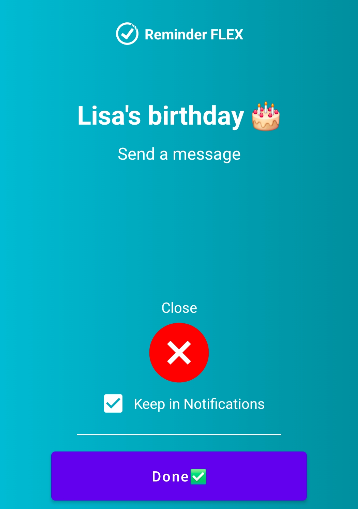
Lights up the screen and shows a full-screen alert on the lock screen
When your device is locked, the screen automatically turns on at the scheduled time and displays the reminder in full screen.Stays on screen for up to 45 seconds
It doesn’t disappear immediately, giving you enough time to notice it.Remains as a normal notification if not acted on
Even if you can’t respond right away, it stays in the notification area for later.
Can be used as a silent alarm alternative
Reminder FLEX also includes an alarm feature, but if you don’t want sound and still want the screen to light up, full-screen notifications let you notice reminders visually without making noise.Persistent notification even while using your device
Even when you’re actively using your phone, a notification stays at the top of the screen to prevent you from missing it.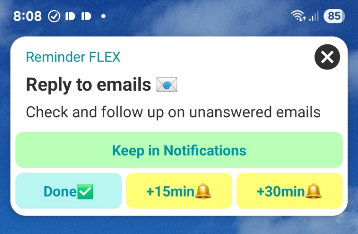
Reminder FLEX Full-Screen Notifications Q&A (FAQ)
Q. Will there be sound during full-screen notifications?
A. Just like regular notifications, it follows your device settings, including sound, vibration, or silent mode.
Q. I want the screen to stay on longer than 45 seconds. Is that possible?
A. You can set snooze intervals, such as every 1 minute repeated 3 times. Even after the 45-second display ends, it will relight again shortly via snooze.
Q. What other notification methods are available in Reminder FLEX?
A. In addition to “Notification” and “Full-screen Notification,” you can choose “Alarm” or “Read aloud” for each reminder.
Use Cases by Scenario
1. When you need to notice something without making sound at work
In meetings or quiet office environments, the screen lights up and shows a full-screen alert so you can notice it without sound.
It works like a silent alarm.
2. Task management for people who tend to miss notifications (e.g. ADHD tendencies)
In environments with many notifications, important ones can easily get buried.
With full-screen notifications, you can clearly recognize what needs to be done now without distractions.
When using apps, notifications are easy to overlook, but Reminder FLEX keeps them visible at the top of the screen.
They won’t disappear even if you swipe, helping you take action on your tasks.
Summary
Even in situations where standard notifications are easy to miss, full-screen notifications significantly reduce the chance of overlooking them.
It’s especially useful for those who never want to miss important tasks.
With Reminder FLEX, you can choose between “Notification” and “Full-screen Notification” for each reminder, making it easy to adjust based on your needs.
Try installing it and set only your most important tasks to full-screen notifications. You’ll likely notice fewer missed tasks in your daily routine.